


Effective SEO reporting in GA4 requires moving beyond vanity metrics like “Total Users” and instead connecting organic search visibility directly to SKU-level revenue. For WooCommerce merchants, this means bridging the gap between Google Search Console’s top-of-funnel data and GA4’s down-funnel conversion events to understand which content actually moves the needle. You cannot manage what you do not measure accurately, and for stores with hundreds or thousands of products, accuracy means knowing exactly which search queries resulted in a completed checkout.
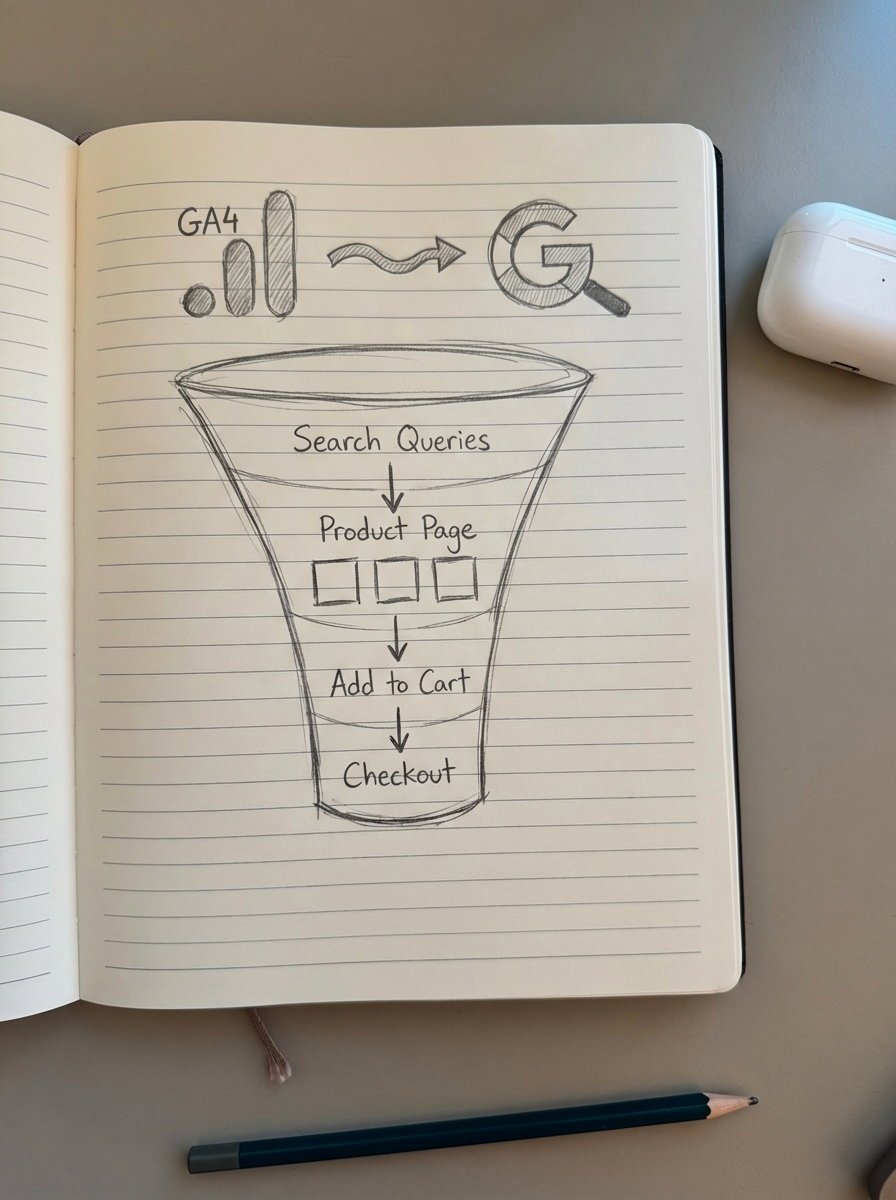
The foundation: Linking Search Console and GA4
If you haven’t linked Google Search Console (GSC) to GA4, your SEO reporting is blind. I often see merchants look at their acquisition reports and see “Organic Search” growing, but they have no idea which keywords are driving that growth without toggling between two different browser tabs. Linking these properties creates a unified data ecosystem where you can see search queries alongside engagement metrics like scroll depth and conversion rate.
To set this up, navigate to Admin > Property Settings > Product Links > Search Console Links. Once linked, you’ll unlock two primary report types in your library:
- Google Search Console Queries, which shows which keywords drive clicks to your site.
- Google Search Console Organic Google Search Traffic, which shows which landing pages are performing best in search results.
I’ve found that combining Google Analytics and Search Console data is the most effective way to identify “low-hanging fruit.” These are keywords ranking in positions 8–15 that already show a decent click-through rate but just need a content refresh or better internal linking to break into the top three. This integration usually takes 24–48 hours to populate, so it should be the first task on any store’s analytics audit list.
Configuring the traffic acquisition report for SEO
The default “Session default channel group” in GA4 is often too broad for granular SEO analysis. It frequently splits “Organic Search” and “Organic Shopping” into separate buckets. While Google treats clicks from unpaid product listings differently than traditional search results, most merchants should view them as a unified organic effort to understand their true market share.
To get a cleaner, more professional view of your performance:
- Navigate to Reports > Acquisition > Traffic acquisition.
- Change the primary dimension from “Session default channel group” to Session source/medium.
- Filter the report for
google / organic.
This granular view allows you to see the exact contribution of search traffic compared to direct or paid CPC. Research into store performance indicates that up to 40% of ecommerce revenue often comes from organic search terms that merchants weren’t even actively tracking. To surface these opportunities, I recommend adding a secondary dimension for Landing page + query string. This helps you identify the specific entry points that attract your most profitable customers, which are often not the pages you’d expect.
Building the organic landing page exploration
Standard reports are restricted by design, and to truly analyze SEO performance, you need to use the GA4 Explore tool. This allows you to build custom reports that correlate specific landing pages with ecommerce events like add_to_cart and purchase. In my experience, these explorations are the only way to prove that your top-of-funnel blog content is actually supporting your bottom-line sales.
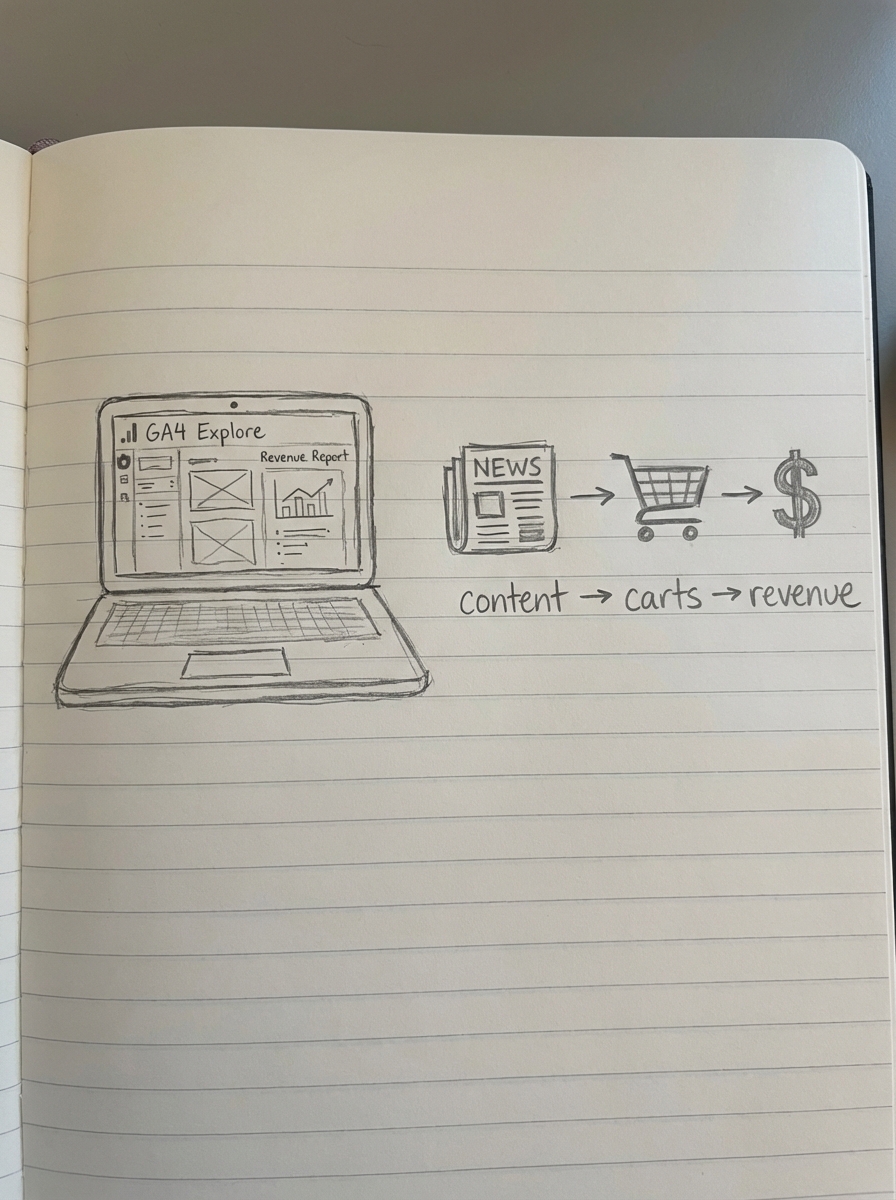
To build an effective SEO exploration, configure the following:
- Add dimensions for Landing page + query string, Device category, and Session source/medium.
- Add metrics for Total users, Sessions, Key events (Conversions), Item revenue, and Add to carts.
- Set a filter for Session source/medium to exactly match
google / organic.
This report reveals where your “content-to-commerce” bridge is broken. If a high-traffic blog post has thousands of sessions but zero “Add to carts,” the search intent alignment is likely off. We built ContentGecko to solve this specific problem by generating catalog-synced content that doesn’t just drive traffic, but actively pitches the SKUs relevant to the reader’s query. This ensures every organic visitor is presented with a clear path to purchase.
SKU-level performance tracking for WooCommerce
The biggest technical mistake I see in WooCommerce SEO is a failure to match the item_id in GA4 with the actual product SKU in your store. If these identifiers don’t match exactly, your SKU-level reporting becomes useless for attribution. Most merchants rely on 3rd party keyword data, which is often inaccurate; the only truth lies in your own first-party conversion data by product.
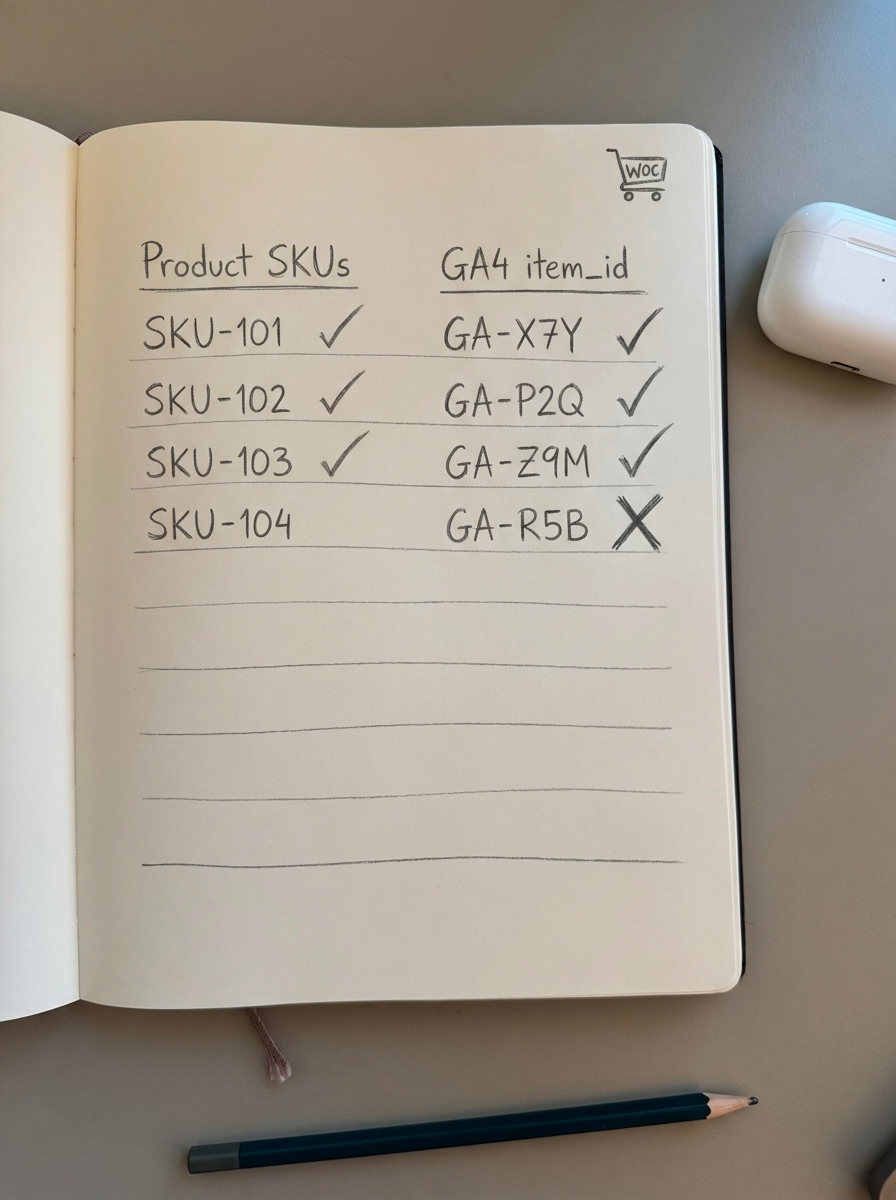
In your GA4 Explorations, you should add Item ID and Item name as dimensions. When filtered by organic traffic, this shows you exactly which products are being sold as a direct result of your SEO efforts.
However, don’t focus exclusively on product pages. Our contrarian view at ContentGecko is that optimizing category pages is actually far more important for long-term growth. Most ecommerce sites would benefit from more specific category names and optimized category descriptions, as these “hub” pages often rank for high-volume head terms that individual product pages can’t reach.
Reporting cadence and key KPIs
Don’t get bogged down in daily rank tracking. 3rd party tools that show minor daily fluctuations are a distraction from the metrics that matter. SEO is a long-term investment, and your reporting should reflect that reality through a tiered cadence.
- Weekly: Monitor for technical anomalies. Look for sudden drops in organic sessions or a spike in 404 errors in GSC to catch site breaks early.
- Monthly: Analyze core SEO KPIs like non-branded traffic growth and your organic conversion rate compared to the previous year.
- Quarterly: Calculate your full SEO ROI. Compare the cost of content production or software fees against the total revenue generated from organic landing pages.
If manual reporting takes more than 30 minutes a week, you are wasting time that should be spent on strategy. Using an automated SEO dashboard can segment your traffic by page type automatically. This allows you to see whether your product pages, category pages, or blog posts are the primary drivers of growth without having to manually filter reports every month.
TL;DR
Effective GA4 SEO reporting requires linking Search Console, using the Explore tool for SKU-level revenue data, and ensuring your WooCommerce SKUs match your GA4 parameters. Move your focus from vanity traffic to conversion-driven content analysis. If you find the manual setup and ongoing reporting too cumbersome, ContentGecko can automate the planning, writing, and performance tracking of your WooCommerce blog to ensure your SEO efforts result in a predictable, measurable ROI.