


Faceted navigation is the killer feature every WooCommerce store needs – until it triples your indexed pages and tanks your crawl budget.
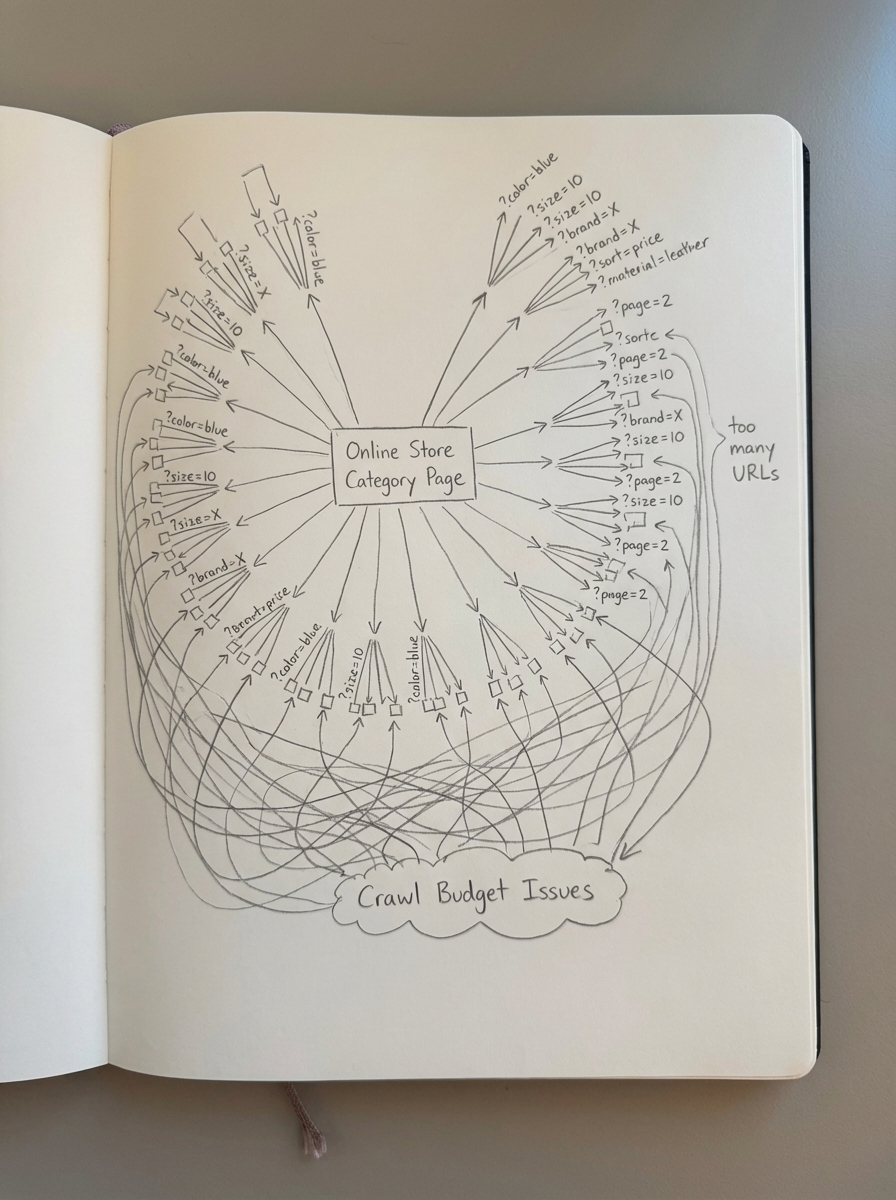
The problem isn’t the filters themselves. It’s that every combination of color, size, price range, and brand creates a new URL that Google wants to crawl. A store with 500 products and five filter attributes can generate 50,000+ URL variations. Most of them are near-duplicates that dilute your ranking signals and waste precious crawl budget on pages no one will ever search for.
I’ve seen this destroy otherwise solid stores. A client once asked me why their category pages stopped ranking after adding filters. Turned out Google was crawling 12,000 parameterized URLs instead of their 200 core category pages. Their crawl budget was exhausted on ?color=blue&size=medium&sort=price variations while new products sat uncrawled for weeks.
Why faceted navigation breaks SEO
Every filter selection typically appends parameters to your URL. Start with /category/shoes/, add “color: black” and you get /category/shoes/?color=black. Add “size: 10” and it becomes /category/shoes/?color=black&size=10. Then someone sorts by price and you’ve got /category/shoes/?color=black&size=10&sort=price-asc.
Each URL is technically unique. Google deprecated the URL Parameters tool in Search Console, so you can’t tell them “ignore sort parameters” through their interface anymore. Without explicit controls, Google treats each variation as a separate page worth crawling and potentially indexing.
The downstream effects compound fast. Crawl budget waste manifests as delayed indexation of new content, infrequent crawling of core pages, and disproportionate bot activity on parameter-heavy URLs visible in Google Search Console. Your product launches sit in the queue while Googlebot churns through 10,000 filter combinations.
Duplicate content dilutes ranking signals. If five URLs show the same products with minor filtering differences, Google must choose one canonical version. If you haven’t told them which one, they guess. Often wrong.
Index bloat fills your index with low-value pages. Check Google Search Console coverage reports – if you see thousands of “Duplicate, Google chose different canonical than user” warnings, you’ve got a faceted navigation problem bleeding crawl budget and equity.
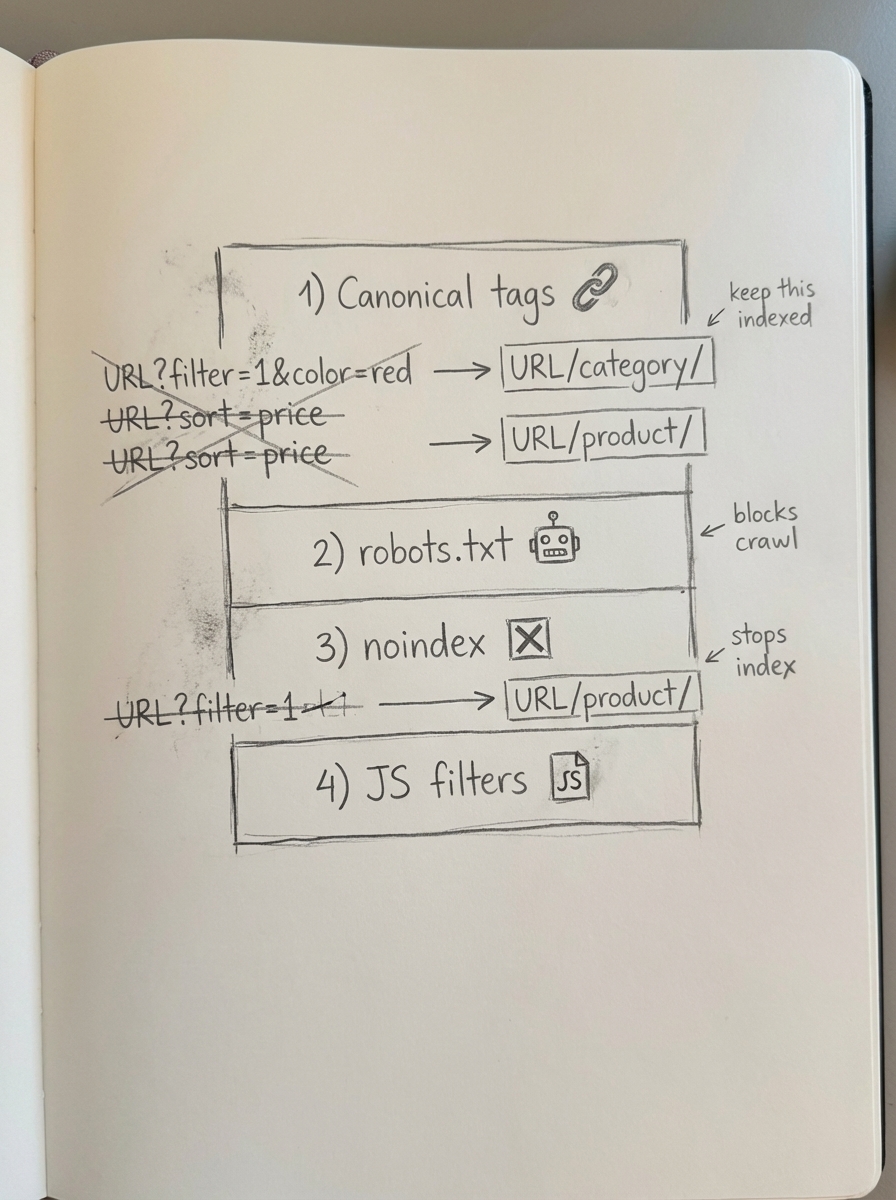
The four-layer defense
Defending against faceted navigation SEO issues requires coordinated strategy across multiple technical controls. No single method works in isolation.
Layer 1: Canonical tags for strategic consolidation
Strategic canonicalization separates high-value facets from throwaway filter combinations. Most filter combinations should canonicalize to the base category. A page filtered to show “blue medium t-shirts sorted by price” should canonical back to /category/t-shirts/ unless “blue medium t-shirts” is a proven search term with monthly volume.
Yoast SEO and Rank Math both handle this through their WooCommerce integrations, but the defaults are often too permissive. Configure them to self-canonicalize base category pages, canonicalize sort parameters to the base category, canonicalize single low-volume filters to base unless proven search demand exists, and preserve unique canonicals only for anchor facets with validated search volume.
For granular control over canonical implementation, see our guide on WooCommerce canonical tags.
Layer 2: robots.txt blocks for parameter patterns
Blocking low-value faceted URLs at scale requires robots.txt pattern-based disallows to prevent crawl budget waste on infinite combinations. Parameter-based faceted navigation must be blocked via robots.txt using Disallow directives.
Add these directives to your robots.txt:
# Block sort and pagination parametersDisallow: /*?sort=Disallow: /*&sort=Disallow: /*?order=Disallow: /*&order=
# Block common filter parametersDisallow: /*?filter_Disallow: /*&filter_Disallow: /*?min_price=Disallow: /*&min_price=Disallow: /*?max_price=Disallow: /*&max_price=
# Allow base categoriesAllow: /category/Allow: /product-category/
The wildcard * matches any characters before the parameter, catching parameterized variations across all categories. The distinction between ? (first parameter) and & (subsequent parameters) ensures you block multi-parameter combinations.
SEMrush’s 2023 Technical SEO audit found 72% of ecommerce sites have robots.txt misconfigurations blocking indexable content, so verify your implementation doesn’t accidentally block critical paths. Essential paths to block in WooCommerce robots.txt include /cart/, /checkout/, /my-account/, and parameterized faceted navigation filters. Always allow /product/, /category/, and /wp-content/uploads/ to ensure primary conversion pages and images remain indexable.
Test by running curl -A "Googlebot" https://yourstore.com/robots.txt and verify in Google Search Console’s URL Inspection tool that filtered URLs show “Blocked by robots.txt” while base categories remain accessible. For a complete configuration guide, see WooCommerce robots.txt best practices.
Layer 3: Noindex meta tags for thin filter pages
Not all filter combinations warrant robots.txt blocks. Some should remain crawlable for internal linking purposes but explicitly tell Google not to index them.
Add noindex, follow meta robots tags to filter combinations with zero historical search volume, pagination beyond page 2-3 of filtered results, temporary sale/clearance filters, and any filtered view showing fewer than 5-10 products. The follow directive is critical – it tells Google to crawl links on the page and pass equity to linked products, even though the filtered page itself shouldn’t be indexed.
Most SEO plugins let you set conditional noindex rules. In Rank Math, navigate to Rank Math → Titles & Meta → Products and configure WooCommerce-specific rules. For AIOSEO, check All in One SEO → Search Appearance → Archives.
I prefer programmatic control for complex catalogs:
add_action('wp_head', 'cgecko_noindex_thin_filters');function cgecko_noindex_thin_filters() { if (is_product_taxonomy() && isset($_GET['filter_color'])) { $product_count = wc_get_loop_prop('total'); if ($product_count < 10) { echo '<meta name="robots" content="noindex, follow">'; } }}This hook counts products on filtered pages and adds noindex when the result set drops below 10 items.
Layer 4: JavaScript-based filtering
The most effective solution for complex faceted navigation is to implement filters client-side with JavaScript, so filter interactions don’t create new URLs at all.
Anchor facets – high-search-demand combinations like “laptops under $1000” – must be server-rendered with static URLs, unique metadata, and schema markup for indexing. Ephemeral states like sort orders should remain client-side via JavaScript.
AJAX-based filtering updates the product grid without changing the URL. Users get instant filtering without page reloads, and Google only sees a single URL per category. The tradeoff: you lose the ability to link directly to filtered states. If “black size 10 running shoes” has proven search demand, JavaScript filtering makes it invisible to search engines.
That’s why the hybrid approach wins: implement JavaScript filtering for low-value combinations (sort, pagination, stock filters) while rendering high-value facets as static URLs with unique content. Popular WooCommerce filter plugins like WOOF (WooCommerce Products Filter) and FacetWP support AJAX modes. Enable AJAX filtering in the plugin settings, then canonicalize the base category URL and use structured data breadcrumbs to reinforce hierarchy.
When to index filtered pages
Not every filtered URL deserves blocking. Filter combinations with proven search demand require unique titles, descriptions, H1s, XML sitemap inclusion, and internal links to signal importance.
Validate search demand before indexing. Export your product filters to a keyword list and use ContentGecko’s free SERP-based keyword clustering tool to identify which filter combinations match actual search queries. Check search volume in Google Keyword Planner, Ahrefs, or SEMrush. Create static landing pages (not parameterized URLs) for any filter with 50+ monthly searches.
For example, if “men’s waterproof hiking boots under $150” gets 200 monthly searches, create a dedicated page at /mens-waterproof-hiking-boots-under-150/ with a unique H1, custom meta description with value proposition, 200-300 words of category-specific content explaining the filter logic, Product Schema markup with aggregateOffer showing the price range, internal links from related categories and blog content, and XML sitemap inclusion.
Treat it like a category page, not a filter state. This URL should exist as a true landing page in your site architecture, not a parameterized query string. Subjective filters like “mid-century modern” furniture styles capture long-tail search intent and should be implemented when aligned with user behavior data from your internal search analytics.
Internal linking strategy for faceted navigation
Internal linking should prioritize high-value facets in navigation menus while excluding low-value filters; breadcrumb structured data reinforces hierarchy.
Your main navigation should link only to core category pages (always), top-performing filter combinations with proven search demand, brand-specific landing pages if you carry premium brands, and sale/clearance pages if they’re permanent fixtures. Never expose parameterized filter URLs in your main navigation. If “blue shoes” deserves a nav link, create a static /shoes/blue/ URL structure instead of /shoes/?color=blue.
Implement breadcrumb navigation with Schema.org BreadcrumbList markup on all filtered pages. Even if the page is noindexed, breadcrumbs help Google understand site hierarchy and pass equity through internal links. For more on breadcrumb implementation and SEO impact, see our guide on WooCommerce breadcrumbs SEO.
Example breadcrumb schema for a filtered page:
{ "@context": "https://schema.org", "@type": "BreadcrumbList", "itemListElement": [{ "@type": "ListItem", "position": 1, "name": "Home", "item": "https://example.com" },{ "@type": "ListItem", "position": 2, "name": "Shoes", "item": "https://example.com/category/shoes/" },{ "@type": "ListItem", "position": 3, "name": "Running Shoes", "item": "https://example.com/category/shoes/running/" }]}Use contextual product recommendations to link between related categories and filter states. “You might also like…” modules that link to complementary filtered views help distribute equity while keeping users engaged. Avoid linking to filtered pages from your blog content unless the filter represents a genuine landing page with unique value.
Monitoring faceted navigation SEO health
Track these metrics monthly to catch faceted navigation issues before they tank your rankings.
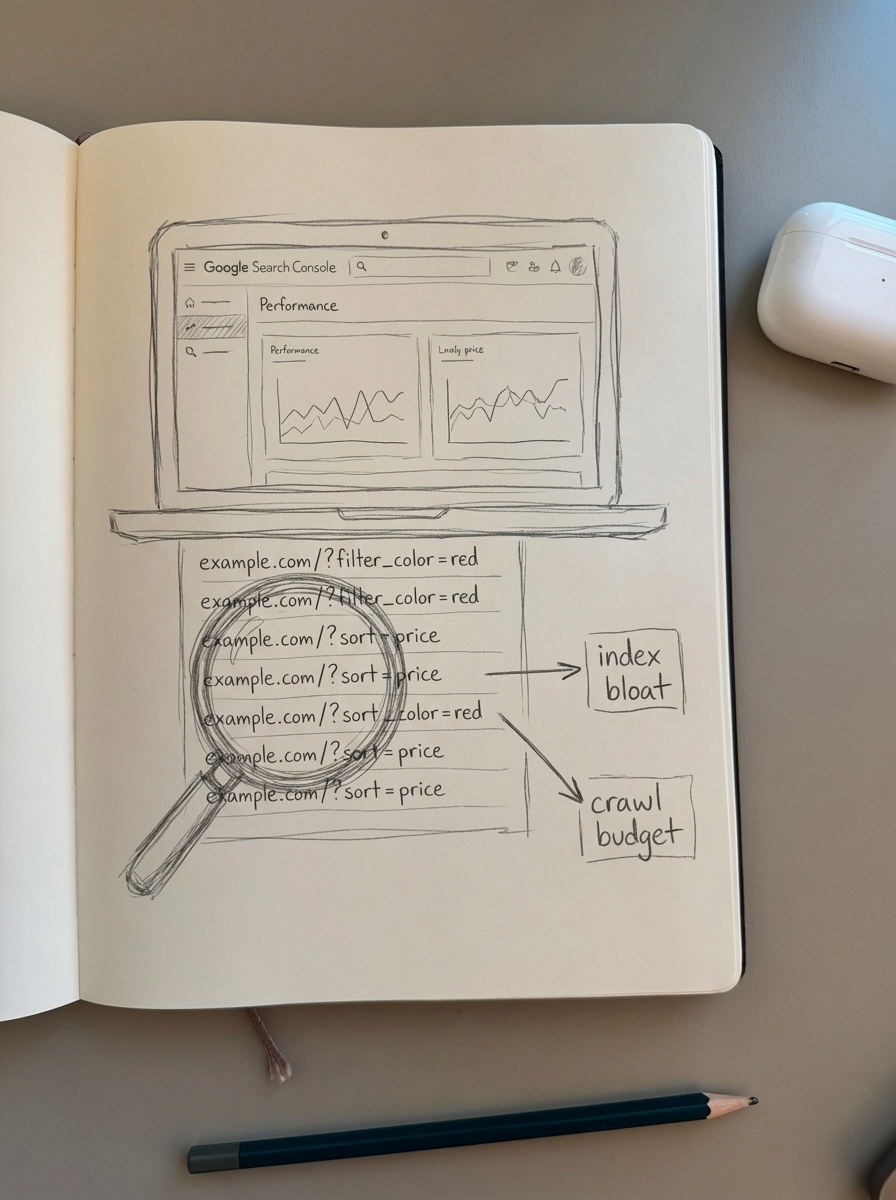
Check Google Search Console’s Coverage Report for “Duplicate, Google chose different canonical than user” warnings and “Discovered - currently not indexed” for filtered URLs. Both signal canonicalization issues that need immediate attention. Monitor Crawl Stats for “Total crawl requests” and “Total download size.” Sudden spikes often indicate filter pages leaking into the crawl budget.
Use site:yourstore.com inurl:"?filter" in Google to estimate how many parameterized filter pages are indexed. Repeat for other parameter patterns. This number should be zero if your blocking strategy is working.
Filter Search Console data to “Contains: ?filter” or your parameter pattern. Check impressions and clicks for filtered URLs. High impressions with zero clicks suggest Google is indexing low-value filter combinations that don’t match search intent.
Calculate crawl budget efficiency as the ratio of valuable pages (products, categories, blog posts) to total crawled pages. Use Screaming Frog to crawl your site, export the URL list, and compare against Google Search Console’s total crawl requests. If parameterized URLs exceed 20% of total crawls, you’re bleeding crawl budget.
Tools like ContentGecko’s Ecommerce SEO Dashboard break down Search Console metrics by page type, making it easier to spot when filtered pages are stealing traffic from core categories.
Run quarterly audits: export all indexed URLs from Search Console, filter for parameter patterns (?, &, =), cross-reference against your keyword research to identify which filtered URLs have search demand, and noindex or block everything else.
URL structure considerations
WooCommerce URL structure matters more with faceted navigation because parameter-heavy URLs compound existing structure issues.
Prefer path-based filter URLs over query strings when possible. Instead of /category/shoes/?color=black&size=10 use /category/shoes/black/size-10/. Path-based URLs are cleaner, more shareable, and easier to manage with robots.txt wildcards. They also signal hierarchy more clearly to Google.
Most WooCommerce filter plugins generate query string parameters by default. You’ll need custom URL rewriting to achieve path-based filtering. WooCommerce Permalinks Manager and similar plugins can help, but this introduces complexity – ensure you set up proper 301 redirects if migrating from query strings to path-based URLs. For more on managing URL changes safely, see our guide on WooCommerce redirects.
Keep URL depth shallow. /shoes/running/mens/black/size-10/ is five levels deep and becoming unwieldy. Limit filtered URLs to three levels maximum: category → primary filter → secondary filter. For foundational URL structure guidance, see WooCommerce URL structure best practices.
Schema markup for filtered pages
Schema markup implementation is critical for enhancing product visibility in search results. 72% of marketers prioritized entity-based optimization (structured data) in 2024 to align with evolving search engine understanding.
Even noindexed filter pages should include Product Schema for linked products and CollectionPage schema for the filtered view itself. This helps Google understand the relationship between filter pages and products even when the filter page isn’t indexed.
Example CollectionPage schema for a filtered category:
{ "@context": "https://schema.org", "@type": "CollectionPage", "name": "Black Running Shoes", "description": "Shop our selection of black running shoes with sizes 7-13 available.", "url": "https://example.com/category/shoes/running/black/", "mainEntity": { "@type": "ItemList", "numberOfItems": 24, "itemListElement": [ { "@type": "Product", "position": 1, "name": "Nike Air Zoom Pegasus", "url": "https://example.com/product/nike-air-zoom-pegasus/", "offers": { "@type": "Offer", "price": "120.00", "priceCurrency": "USD", "availability": "https://schema.org/InStock" } } ] }}For high-value filter pages you’re actively indexing, add aggregateRating if you have reviews and aggregateOffer to show the price range:
"aggregateOffer": { "@type": "AggregateOffer", "lowPrice": "89.99", "highPrice": "189.99", "priceCurrency": "USD", "offerCount": 24}Most WooCommerce SEO plugins generate basic product schema but don’t handle filtered collections well. You may need custom implementation or a plugin like Schema Pro for advanced markup. For comprehensive product page optimization including schema, see WooCommerce product page SEO.
Common objections
“Our users rely on filtering, blocking parameters will break the experience.”
Blocking URLs from Google doesn’t prevent users from accessing them. Robots.txt and noindex only affect search engine behavior. Users can still click filter checkboxes and get instant results. They just can’t Google-search for “blue size 10 shoes site:yourstore.com” and land on a filtered URL – which is exactly the point.
“We have thousands of products, managing this manually is impossible.”
Manual management doesn’t scale. That’s why you need programmatic rules. Set canonical patterns at the plugin level, use robots.txt wildcards, and implement conditional noindex logic in your theme. Once configured, these rules apply automatically to all current and future products.
For stores at scale, platforms like ContentGecko automate catalog-aware content generation and technical SEO implementation, including canonical tag management and XML sitemap optimization synced to your WooCommerce catalog changes.
“Won’t blocking these URLs hurt our rankings?”
Only if you’re blocking URLs that actually drive organic traffic. That’s why you validate search demand first. Low-value filter combinations with zero search volume and zero organic clicks aren’t helping your rankings – they’re diluting them. Every bit of link equity and crawl budget spent on “shoes sorted by price ascending” is equity not going to your core category pages. Blocking low-value URLs concentrates ranking signals on pages that matter.
Understanding WooCommerce duplicate content issues helps clarify why strategic blocking protects rather than hurts your SEO.
TL;DR
Faceted navigation creates exponential URL variations that waste crawl budget and dilute rankings if left uncontrolled. Use a four-layer defense: canonical tags to consolidate low-value filter combinations to base categories, robots.txt pattern blocks for sort and pagination parameters, noindex meta tags for thin filtered views, and JavaScript-based filtering for ephemeral states.
Index filtered pages only when proven search demand exists – validate with keyword research and SERP clustering first. Treat high-demand filter combinations as static landing pages with unique content, schema markup, and internal links. Monitor crawl stats and index coverage monthly to catch leaks early.
For stores managing thousands of products, automated solutions like ContentGecko handle canonical tags, URL structure, and schema markup across catalog changes without manual intervention. The goal is filtering UX that serves users without creating an SEO disaster for search engines.