


Your product images are either silently killing your rankings or quietly driving them – there’s no middle ground. After working with hundreds of WooCommerce stores, I’ve seen catalogs with stunning photography buried on page five because merchants treated image SEO as an afterthought. The math is brutal: 20% of Google’s traffic comes from image searches, and 70% of consumers say page speed affects their purchasing decisions.
Most WooCommerce merchants upload images straight from their supplier or photographer – 4000×4000px files named “IMG_1234.jpg” with no alt text. Google sees these images as expensive, invisible bandwidth hogs. Your competitors who optimize? They’re capturing that 20% image search traffic while you’re not.
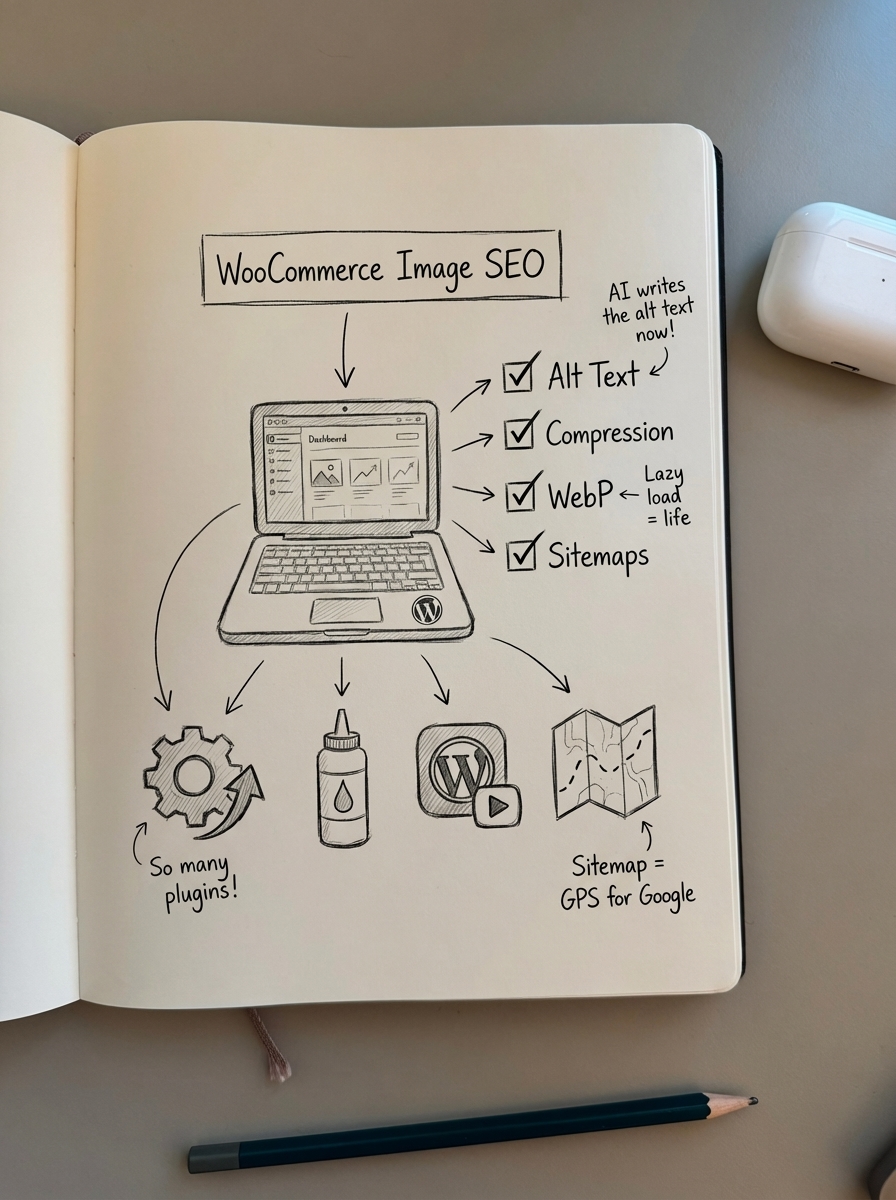
Why WooCommerce image SEO actually matters
Three concrete reasons image optimization affects your bottom line:
Search visibility. Google can’t “see” your images without alt text and filenames. When someone searches “red running shoes,” Google relies entirely on your image metadata to decide if your product photo is relevant. Google recommends that alt text should accurately describe the image to improve search visibility in their documentation on proper image optimization practices.
Page speed and conversions. Unoptimized images are the #1 cause of slow product pages. A 2000×2000px JPEG at 2MB loads 10× slower than a properly compressed 800×800px WebP at 150KB. Every second of delay costs you conversions – studies show a 20% drop in conversions per 1-second mobile load delay. Speed directly impacts both search rankings and conversion rates for WooCommerce stores.
Rich results. Product schema requires image URLs to trigger rich snippets in search results. Missing or broken image URLs in your schema markup means you’re leaving CTR gains on the table. When implemented correctly with proper WooCommerce structured data, product images appear directly in Google Shopping results and drive significantly higher click-through rates.
File names: The foundation most merchants skip
Your image filename is the first signal Google reads. It’s also the easiest win.
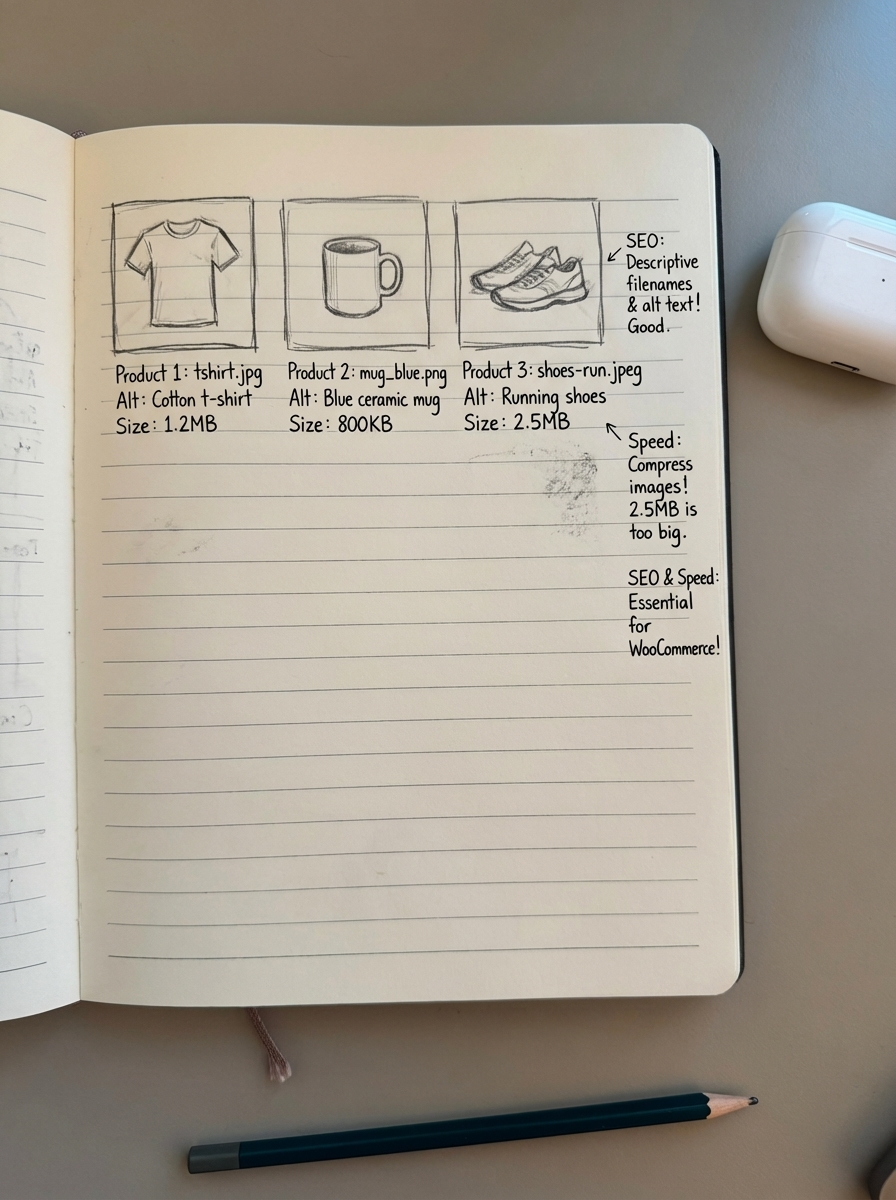
Use descriptive, hyphenated filenames that include your primary keyword and key product attributes. If you’re selling a “Men’s Organic Cotton T-Shirt” in black, your filename should be mens-organic-cotton-tshirt-black.jpg – not IMG_1234.jpg, DSC_0045.jpg, or product-photo-final-v3.jpg.
Rename images before uploading to WordPress. Changing filenames after upload requires regenerating thumbnails and updating all references – painful for large catalogs. For existing stores with thousands of products, plugins like Image SEO Optimizer can automate filename rewrites, but prevention beats remediation.
Alt text that actually helps rankings
Alt text serves two masters: accessibility (screen readers for visually impaired users) and SEO (Google’s image understanding). Most merchants either skip it entirely or stuff it with keywords.
Effective alt text should be concise (under 125 characters), describe the product with key attributes, and include the primary keyword naturally. Avoid keyword stuffing in alt text – Google penalizes obvious manipulation.
I write alt text as if I’m describing the image to someone over the phone. Include brand, model, color, and one distinguishing feature. For lifestyle shots, describe the context.
Example for a running shoe product:
- ❌ Bad: “shoe, running shoe, best running shoe, buy running shoe”
- ❌ Too generic: “Running shoe”
- ✅ Good: “Nike Air Zoom Pegasus 40 running shoe in white and blue”
For a lifestyle image:
- ✅ Good: “Woman wearing wireless Bluetooth headphones while jogging in park”
In WooCommerce, add alt text in the Media Library (click the image → Alt Text field) or directly in the product editor when inserting images. For bulk updates, use plugins like SEO Optimized Images or export/import via CSV with WooCommerce’s native tools.
Image dimensions and file sizes: The performance balancing act
Here’s where most merchants mess up: they confuse image dimensions (pixels) with file size (kilobytes). Image file size (KB/MB) and image dimensions (pixels) are distinct metrics requiring separate optimization approaches.
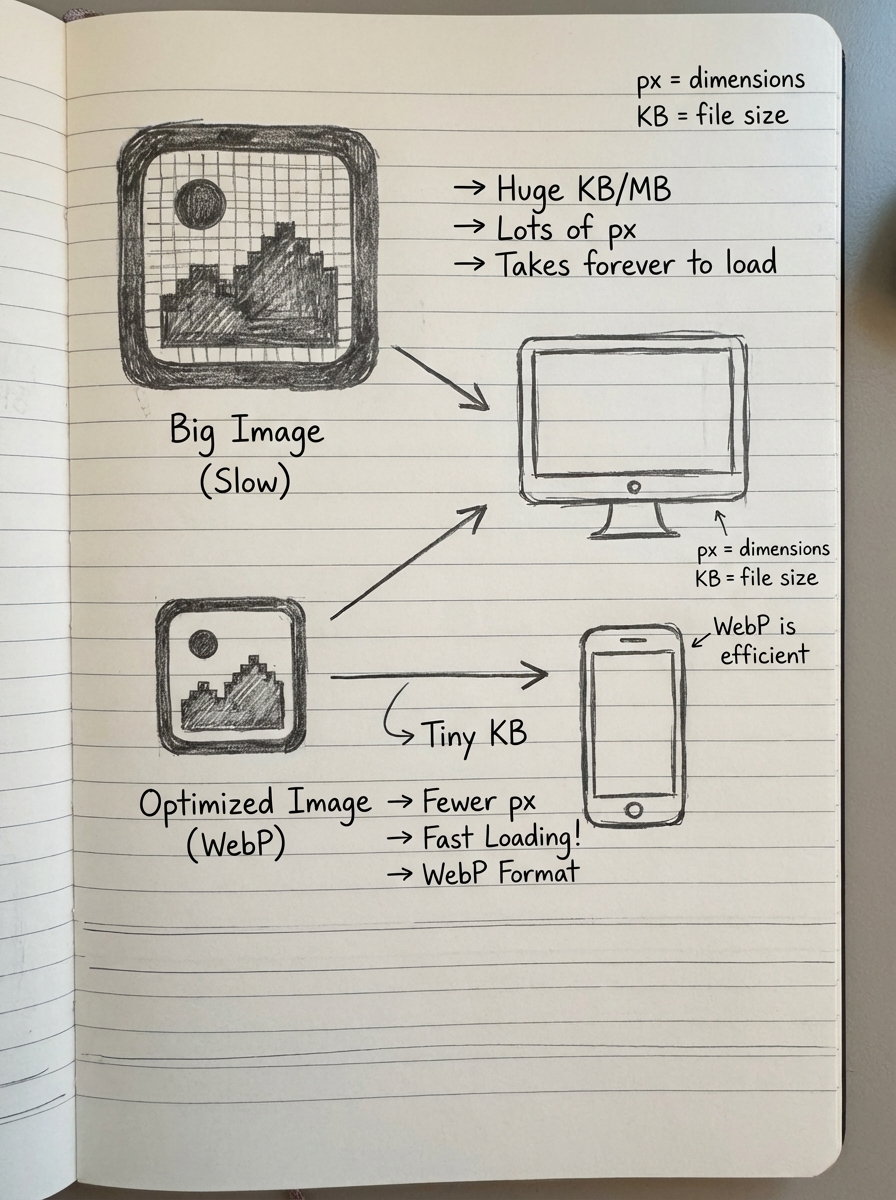
Target dimensions: thumbnails should be 300×300px (~50KB), category and listing images work best at 800×800px (~150KB), and product detail views with zoom functionality need 2000×2000px (~500KB). Ideal WooCommerce product image dimensions range from 800px to 1000px for simple products, with 2000px recommended for complex, detailed images requiring zoom functionality.
Upload images at your maximum display size (typically 2000×2000px for zoom), then let WooCommerce generate smaller thumbnails automatically. Your theme controls which thumbnail size displays where – check under WooCommerce → Settings → Products → Display.
File size matters more than dimensions for speed. A 2000px image compressed to 200KB loads faster than an 800px image at 500KB. Target these file sizes per use case: thumbnails and grid views should be 20–50KB, single product main images 100–200KB, and zoom/lightbox images 300–500KB.
Implement responsive images with srcset and multiple breakpoints (320w, 768w, 1024w) as recommended by Google Web Fundamentals, so mobile users don’t download 2000px images on a 375px screen. WordPress and WooCommerce handle this automatically if you upload properly sized originals.
Compression: Smaller files without quality loss
Compression reduces file size without destroying image quality. There are two types:
Lossy compression removes some data permanently but creates much smaller files. JPEG uses lossy compression. You’ll see slight quality degradation at high compression levels, but 75–85% quality is visually identical to 100% for most product photos while being 60% smaller.
Lossless compression removes metadata and optimizes file structure without quality loss. PNG uses lossless by default. File size savings are smaller (10–30%) but quality is pixel-perfect.
For WooCommerce product images, use lossy compression on JPEGs at 80% quality and lossless compression on PNGs (logos, graphics with transparency).
Tools to compress images before upload: Squoosh.app (free, web-based, visual comparison), TinyPNG/TinyJPG (free, batch processing), or Photoshop “Export for Web” (legacy but reliable).
After upload, WordPress plugins handle optimization automatically: Smush offers free lossy/lossless compression, bulk optimization, and lazy loading. Imagify provides 25MB/month free with WebP conversion and backup originals. ShortPixel gives you 100 images/month free, maintains EXIF data, and includes CDN integration.
I prefer pre-compressing critical images (hero shots, top sellers) manually with Squoosh for maximum control, then using a plugin like Smush for bulk catalog images. Set plugins to compress on upload so future images are handled automatically.
WebP and modern formats
Use WebP format with JPEG fallback for optimal WooCommerce image performance. WebP is 20–50% smaller than JPEG/PNG with identical visual quality, dramatically improving page load times across your catalog.
WordPress 5.8+ supports WebP natively – just upload .webp files. For older sites or automatic conversion, use plugins like Imagify (converts JPEGs/PNGs to WebP on upload), ShortPixel (creates WebP versions alongside originals), or WebP Express (server-level WebP conversion with automatic fallback).
Most modern browsers support WebP (96%+ coverage). Plugins handle fallback to JPEG for older browsers automatically using <picture> elements.
AVIF is even newer and smaller than WebP but has limited support (86% browser coverage as of 2025). Stick with WebP for now unless you have a bleeding-edge tech audience.
Lazy loading for speed
Use lazy loading for images to improve page speed metrics and Core Web Vitals scores. Lazy loading defers below-the-fold images until users scroll near them, dramatically improving initial page load times – often reducing Largest Contentful Paint by 30-50%.
WordPress 5.5+ lazy loads images automatically by adding loading="lazy" to <img> tags. WooCommerce inherits this behavior. To verify lazy loading is working, view page source and look for loading="lazy" in your product image markup.
Don’t lazy load above-the-fold images (hero image, main product photo), the first 2–3 product images in category grids, or logo and navigation images. These images need to load immediately for good user experience. Most themes handle this correctly, but if you notice your main product image loading late, check your theme’s lazy load settings or exclude specific images.
For more aggressive lazy loading, use plugins like a3 Lazy Load or Smush which add JavaScript-based lazy loading with placeholder images and fade-in effects.
Product schema and image requirements
Implement Product schema with image array containing absolute URLs – missing price, availability, or invalid image URLs break rich results and prevent your products from appearing in Google Shopping results. Product schema tells Google “this is a product” and provides structured data including images.
Required schema properties for images:
{ "@type": "Product", "image": [ "https://yourstore.com/wp-content/uploads/product-image-1.jpg", "https://yourstore.com/wp-content/uploads/product-image-2.jpg" ]}Common schema image mistakes merchants make: using relative URLs (/wp-content/uploads/...) instead of absolute URLs with protocol and domain, linking to images that return 404 errors or redirect, using images smaller than 696px (Google’s minimum for rich results), or missing the images array (even single-image products should use an array).
Always validate structured data using Google Rich Results Test tool after implementing or changing product schema. Paste your product URL and look for “Product” in eligible rich result types. Fix any errors before they suppress your rich snippets.
Most WooCommerce SEO plugins (Yoast, Rank Math, AIOSEO) generate product schema automatically and include image arrays from your gallery images. When you need product schema across supporting content like how-to guides or buying guides that reference products, tools like ContentGecko’s WordPress connector plugin handle schema generation to ensure proper image references across your entire site.
Image sitemaps and discoverability
Consider adding image sitemaps for better visibility in search results. Image sitemaps help Google discover and index your product images faster, especially for large catalogs with deep category structures or new product launches.
XML sitemaps can include <image:image> tags within URL entries:
<url> <loc>https://yourstore.com/product/wireless-headphones/</loc> <image:image> <image:loc>https://yourstore.com/uploads/wireless-headphones.jpg</image:loc> <image:title>Wireless Bluetooth Headphones</image:title> <image:caption>Noise-cancelling wireless headphones</image:caption> </image:image></url>Rank Math and Yoast WooCommerce SEO add-on automatically include image sitemaps in your WooCommerce XML sitemap. Enable image sitemap support in plugin settings, regenerate your sitemap, then submit it to Google Search Console.
For stores with 1,000+ products, image sitemaps ensure new product photos get indexed within days rather than weeks. Monitor indexing status in Search Console → Sitemaps to track progress.
Plugins that automate WooCommerce image SEO
Manual image optimization doesn’t scale past 50 products. Plugins bridge the gap between best practices and catalog reality.
SEO plugins with image features
Rank Math PRO ($59/year) auto-generates alt text from product title and attributes, includes image sitemap support, handles schema markup with image arrays, and offers bulk editing of alt text across your entire catalog.
Yoast WooCommerce SEO ($99/year) provides product schema with images, image XML sitemap, social media image optimization (Open Graph), but has limited auto-alt-text features compared to competitors.
AIOSEO ($49/year) offers dynamic image alt text from custom fields, schema integration, includes image sitemaps, and works well with large catalogs up to 50,000 products without performance degradation.
Compression and optimization plugins
ShortPixel Image Optimizer (freemium, 100 images/month free) provides lossy, glossy, and lossless compression modes, WebP conversion with fallback, bulk optimization with progress tracking, Retina/2x image support, and CDN integration. The interface shows before/after file sizes so you can monitor compression impact.
Smush (freemium) bulk compresses up to 50 images at once in the free version, includes lazy loading built-in, automatically resizes large uploads, scans directories for missed images, and the pro version adds CDN and WebP support.
Imagify ($9.99/month after free tier) offers visual before/after comparison, three compression levels (Normal, Aggressive, Ultra), original image backup, bulk optimization dashboard, and resizes images on upload to prevent oversized files.
AI-powered image SEO
Image SEO Optimizer ($29/year) uses AI technology to automatically optimize image filenames and alt texts, offers bulk renaming of existing images, provides custom alt text templates using product attributes, and includes WooCommerce-specific integration that understands product data structure.
For large catalogs, I recommend a combo approach: Rank Math for schema/sitemaps/alt text automation, ShortPixel or Imagify for compression and format conversion, and manual attention to your top 20% revenue-driving products. Let plugins handle the long tail.
ContentGecko’s image approach for product content
Our WooCommerce product image generator creates lifestyle images optimized for SEO out of the box – proper filenames, compressed file sizes, and descriptive alt text baked in. When we generate blog content that references your products, we automatically pull optimized product images from your catalog, add contextually relevant alt text (not just the product title), include images in proper schema markup for how-to and listicle content, compress and resize images to target dimensions (800×800px standard, 150KB max), and update image references when product URLs or images change.
The WordPress connector plugin handles image downloads and automatically sets featured images for blog posts, ensuring every page has proper Open Graph images for social sharing. For stores monitoring image performance, our ecommerce SEO dashboard breaks down impressions and clicks by page type, so you can see which product images are driving image search traffic versus which need optimization attention.
Common image SEO mistakes to avoid
Using stock photos for unique products. Google prioritizes unique images in image search. If you’re dropshipping and using the same supplier photos as 50 competitors, you won’t rank in image results. Invest in unique photography or lifestyle shots – even simple iPhone photos on a white background beat generic supplier images.
Ignoring image titles. The image title attribute (different from alt text) appears on hover and in some screen readers. Most merchants leave it as the filename. Use the same descriptive format as alt text: “Nike Air Zoom Pegasus 40 running shoe in white and blue.”
Optimizing once and forgetting. Product images change – you add new photos, seasonal variants, or lifestyle shots. New uploads need the same SEO treatment as your original catalog. Set up your plugin workflow so optimization happens automatically on every upload.
Neglecting mobile dimensions. 63.31% of web traffic comes from mobile devices. Your 2000px product images look great on desktop but murder mobile page speed. Responsive images with srcset are non-negotiable in 2025.
Breaking images with CDN misconfiguration. CDNs dramatically improve image delivery speed (reducing latency by 40-60% versus traditional hosting), but incorrect configuration breaks schema absolute URLs or causes mixed content warnings. When implementing a CDN like Cloudflare or Cloudinary, validate your WooCommerce product page SEO including product schema and check that all image URLs return 200 status codes.
Measuring image SEO impact
Track these metrics to prove image optimization ROI:
Google Search Console: Navigate to Performance → Search Results → Search type: Image to see impressions, clicks, CTR, and position for image search. Compare before/after optimization periods and filter by specific products or categories to identify winners.
Page speed metrics: Use Google PageSpeed Insights to measure Largest Contentful Paint (LCP). Properly optimized images can reduce LCP by 30-50% according to research on image optimization best practices. Target LCP under 2.5s for good Core Web Vitals scores.
Conversion rate: Track product page conversion rate before/after image optimization. Studies show 85% of shoppers rely on product descriptions and images when making purchasing decisions – better images create higher confidence and more conversions.
Rich results: Monitor Search Console → Enhancements → Product for rich result eligibility. Properly structured product schema with images yields 25-35% higher click-through rates compared to standard organic listings.
For comprehensive ROI tracking across your WooCommerce SEO efforts, ContentGecko’s SEO dashboard shows exactly which products and categories are driving organic traffic – and which need image optimization attention.
TL;DR
WooCommerce image SEO is non-negotiable for stores that want to compete in image search and maintain fast page speeds. Optimize in this order: descriptive, hyphenated, keyword-rich file names before upload; alt text under 125 characters that includes brand/model/color and avoids keyword stuffing; dimensions of 800×800px standard and 2000×2000px for zoom with responsive srcset; compression targeting 100–200KB for product images using WebP with JPEG fallback; absolute URLs in product schema image arrays validated with Rich Results Test; and automation via plugins like Rank Math or Yoast for schema combined with Smush or ShortPixel for compression.
For catalogs over 500 products, manual optimization doesn’t scale – automation via plugins or platforms like ContentGecko becomes essential. Start with your top-revenue products and work down. Your future self (and Google) will thank you.
Looking to automate product-focused content that includes optimized images? Check out ContentGecko’s pricing or read our guide on WooCommerce product page SEO for broader optimization tactics beyond images.