


Your site search is leaking revenue. Most WooCommerce stores obsess over Google rankings while ignoring the goldmine sitting in their own search bar – and missing massive SEO opportunities in the process.
Here’s what most merchants get wrong: they treat site search as a UX feature and SEO as separate. But proper site search optimization feeds your technical SEO, reveals exactly what customers want, and creates conversion-focused landing pages that actually rank.
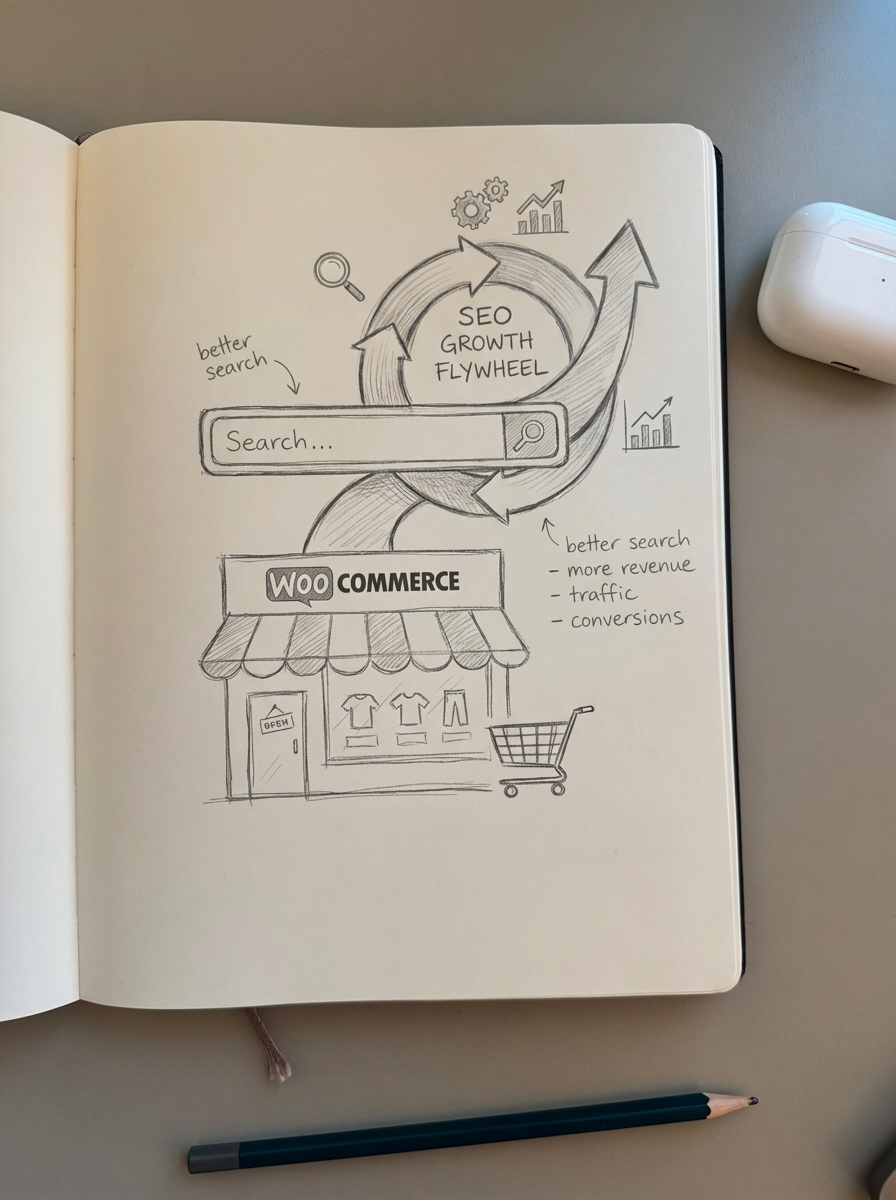
Why WooCommerce site search matters for SEO
Default WooCommerce search is terrible. It matches keywords against product titles and short descriptions using basic MySQL queries. Miss one character? No results. Use a synonym? Nothing. Search for “running shoes” when you’ve labeled them “athletic footwear”? Zero.
This creates two problems. For users: they can’t find what they need, bounce, and buy from a competitor. For search engines: you’re missing signals about what content to create, which products to prioritize, and how customers actually describe your products – not how you describe them.
I’ve seen stores with 10,000+ SKUs where internal search drives 15-20% of revenue. When that search works properly and feeds into your SEO strategy, you create a flywheel: better search reveals customer intent, you optimize for those terms, Google sends more qualified traffic, more searches, better data.
Installing a better WooCommerce search plugin
The first step is replacing default search with something that actually works.
Top WooCommerce search plugins
For most stores (500-5,000 products), SearchWP provides detailed search analytics, autocomplete suggestions, and fuzzy search to catch typos. It indexes custom fields, product attributes, and even PDFs – giving you complete control over what users can find.
For tight budgets, Advanced Woo Search is the best free option. It dramatically improves default search functionality without costing anything.
For large catalogs (5,000+ products), ProdvanceAI uses AI-powered relevance ranking and Product Index Table technology for near-instant results. It includes Google Analytics tracking and multilingual support via WPML and Polylang.
For conversion focus, FiboSearch offers “Add to Cart from Search” functionality through its Details Panel – a massive friction reducer that lets customers buy directly from search results.
Implementation checklist
After installing your search plugin: enable search analytics or logging in settings, configure weight settings (product titles should rank higher than descriptions), add synonyms for common variations (“sneakers” = “running shoes” = “trainers”), test edge cases like misspellings and product codes, and set up Google Analytics event tracking if your plugin supports it.
Most plugins integrate with Google Analytics automatically, but verify that search queries are being tracked. You need this data for the SEO feedback loop.
Analyzing internal search data for SEO opportunities
Your internal search analytics reveal exactly what customers want – often before Google Keyword Planner shows any volume.
What to track
Pull monthly reports showing search queries with zero results (“failed searches”), high-volume searches leading to low conversions, searches resulting in immediate exits, product categories with highest search volume, and seasonal search patterns.
Search Console limits long-tail query data to “<10” impressions, obscuring early-stage opportunities. Your internal search data fills that gap.
Turning failed searches into content
Failed searches are gold. Each one represents a customer actively looking to buy something you either don’t stock clearly enough or don’t rank for.
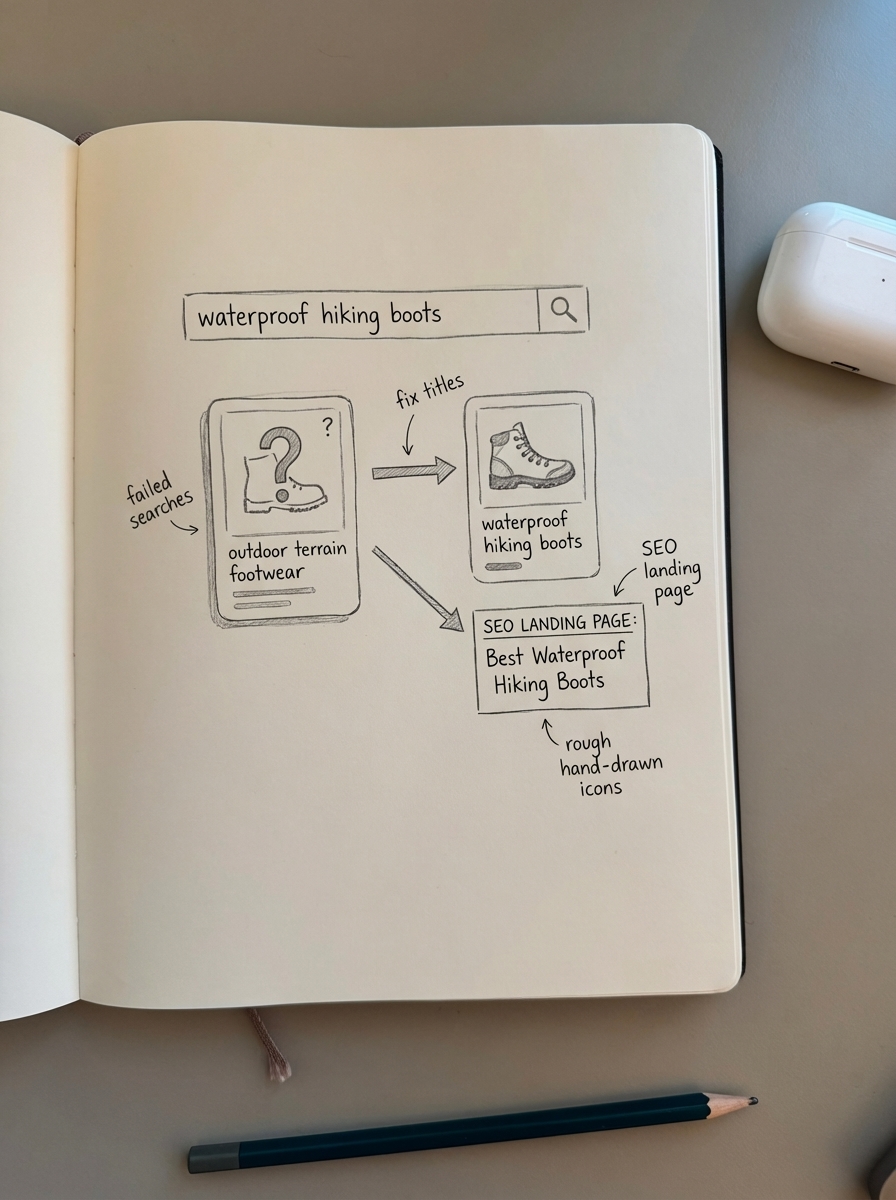
Example workflow: Export failed searches from the past 90 days. Filter for searches with 10+ occurrences. Check if you have products matching those terms but labeled differently. For products you stock, update product titles, create dedicated landing pages, and optimize category pages. For products you don’t stock, evaluate adding to catalog or creating comparison and alternative content.
I’ve seen this process reveal that customers were searching for “waterproof hiking boots” while products were titled “outdoor terrain footwear with weather protection.” A simple title update and category page optimization resulted in 40% more organic traffic to that segment within 60 days.
Creating SEO-optimized category and filter pages
Internal search patterns should directly inform your faceted navigation SEO strategy.
If internal data shows high search volume for “women’s running shoes size 8,” that’s a signal to create a filtered URL like /womens-running-shoes/size-8/, make it indexable (not canonical to parent), add unique content targeting that exact search intent, and include it in your XML sitemap.
But don’t create every possible filter combination. Focus on keywords with manageable difficulty scores (30-50) and proven search demand from your internal analytics.
Use SERP-based keyword clustering to identify which search queries trigger similar Google results. This approach provides more actionable SEO insights than semantic clustering because it directly analyzes search engine results pages to understand user intent. Cluster those together and target them with a single optimized page rather than creating thin content across dozens of filter combinations.
Optimizing WooCommerce product pages for search
Product page SEO is straightforward if you follow a system.
Essential on-page elements
Product titles should include your primary keyword, brand, and one distinguishing feature. Example: “Patagonia Better Sweater Quarter-Zip Fleece – Men’s” not “Better Sweater 1/4 Zip.”
URLs should be short and keyword-focused. Use /mens-fleece-jacket/ not /product/p12847/. See our complete guide on WooCommerce URL structure for detailed implementation.
Descriptions over 300 words perform significantly better than thin content. Address common questions, use cases, sizing, and materials. Don’t just list features – explain benefits in terms customers actually search for.
Images need descriptive filenames (patagonia-better-sweater-navy.jpg not IMG_0001.jpg) and detailed alt text. Google increasingly surfaces products through image search.
For comprehensive product page optimization, see our WooCommerce product page SEO guide.
Structured data implementation
Structured data implementation can increase click-through rates by 35-45% by displaying star ratings, prices, and stock status directly in search results.
Required schema types include Product (name, SKU, images, price, availability), AggregateRating (average rating, review count), Offer (price, currency, availability), and BreadcrumbList (category hierarchy).
Only 32% of WooCommerce sites implement review schema correctly, despite it generating 25-35% higher CTRs. Use Yoast SEO, Rank Math, or AIOSEO to handle this automatically – or go custom with JSON-LD if you have developer resources.
Properly implemented structured data makes your products eligible for Google Shopping without paid ads. That’s free visibility in a premium placement.
Test your implementation with Google Rich Results Test for live URLs, Schema Markup Validator at validator.schema.org, and Google Search Console under Enhancements → Products. Google typically indexes new schema within 7-14 days, trackable via Search Console.
Technical WooCommerce SEO settings
Technical SEO is where most WooCommerce stores waste massive amounts of crawl budget and dilute ranking signals.
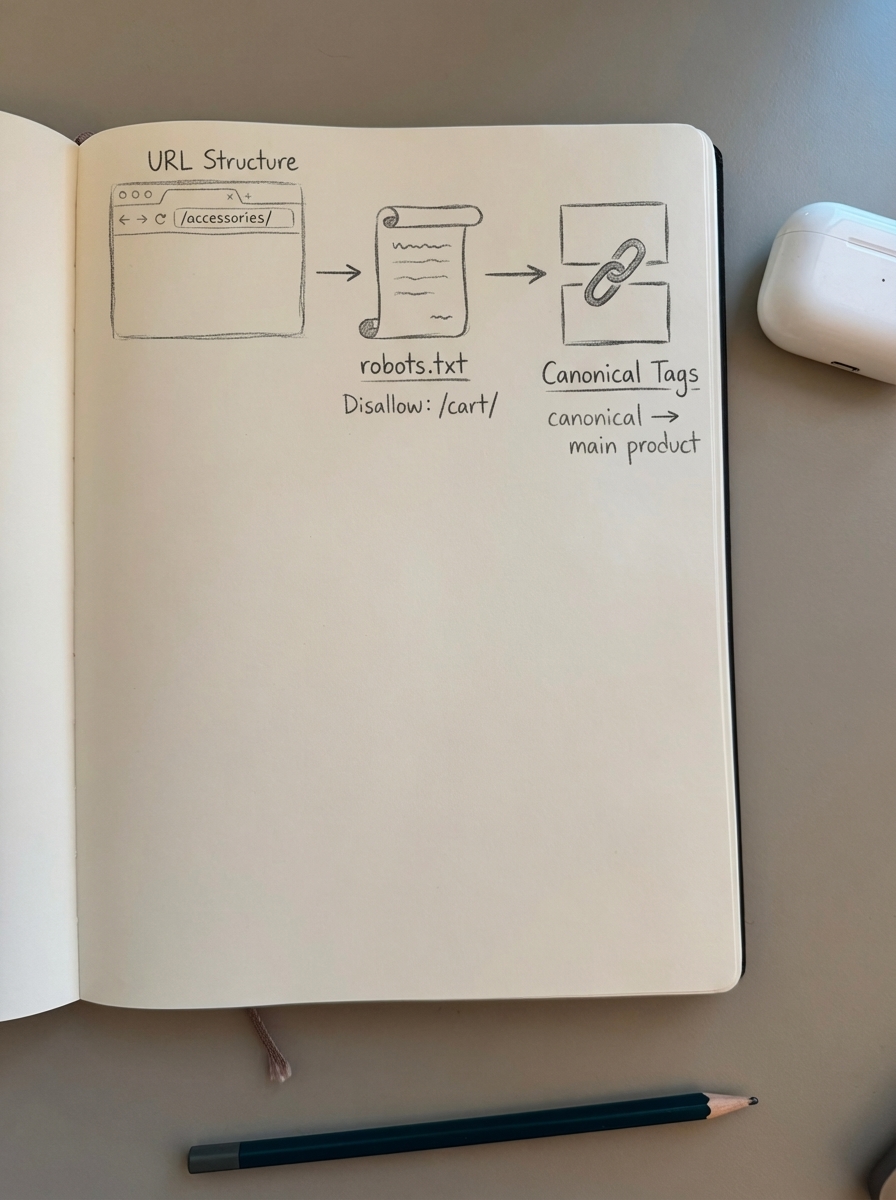
URL structure optimization
Use WordPress “Post name” permalinks under Settings → Permalinks. Google explicitly prefers readable words over ID numbers.
For WooCommerce-specific settings, go to Settings → Permalinks → Product permalinks and choose “Shop base with category.” This gives you URLs like yourstore.com/hiking-gear/waterproof-boots/merrell-moab-3/ instead of yourstore.com/product/12847/.
Remove the /product-category/ base to shorten category URLs. Instead of yourstore.com/product-category/accessories/, use yourstore.com/accessories/. Shorter URLs are preferred by Google. For detailed instructions, see our guide on optimizing WooCommerce URL structure.
Warning: Changing URL structure requires careful 301 redirects. Plan this during low-traffic periods and expect 2-4 weeks for Google to fully process the changes.
Robots.txt configuration
Over-blocking reduces indexation of valuable content, while under-blocking wastes crawl budget on faceted navigation and checkout flows.
Essential robots.txt rules for WooCommerce:
User-agent: *Disallow: /cart/Disallow: /checkout/Disallow: /my-account/Disallow: /*?*Allow: /*?s=Allow: /product/Allow: /category/Sitemap: https://yourstore.com/sitemap_index.xmlThe Disallow: /*?* blocks all parameterized URLs from filters and sorting. The Allow: /*?s= re-allows site search results.
Test in Google Search Console → robots.txt Tester. Product pages should show “Allowed” and cart/checkout should show “Blocked.” For detailed configuration including templates by store size, see our WooCommerce robots.txt guide.
Conflicting SEO plugins cause unpredictable robots.txt behavior and potential schema duplication issues. Disable one if you’re running multiple plugins like Yoast and Rank Math together.
Canonical tag management
Canonical tags consolidate ranking signals across duplicate product URLs created by variations, multiple categories, and filtered views.
Common issues: Product variations should canonicalize to the parent product unless the variation is substantively different (different materials, use cases). For products in multiple categories, choose one primary category and canonical all other instances to that version. Filtered or sorted category pages should canonical back to the main category page unless the filter combination has proven search demand – check your internal search analytics.
Configure this in Yoast SEO → Search Appearance → Products or Rank Math → Titles & Meta → Products. For advanced scenarios and troubleshooting, see our WooCommerce canonical tags guide.
Breadcrumb implementation
Breadcrumbs improve site structure understanding and can appear directly in search results. Stores with proper breadcrumbs often see 5-15% improvement in organic CTR.
Enable breadcrumbs in your theme or use an SEO plugin. Make sure BreadcrumbList schema is included – most modern plugins handle this automatically.
Example breadcrumb structure: Home > Hiking Gear > Footwear > Waterproof Boots > [Product Name]
Keep breadcrumbs to 3-4 levels maximum. Deeper hierarchies confuse both users and search engines. For implementation instructions and troubleshooting, see our WooCommerce breadcrumbs SEO guide.
Creating SEO content that converts
Product and category pages alone won’t capture all relevant searches. You need informational content targeting how-to queries, comparisons, and buying guides.
Content types that work for ecommerce
How-to guides like “How to choose hiking boots” target customers early in the buying journey and naturally link to your product pages.
Comparison posts such as “Gore-Tex vs. eVent waterproofing” position you as an authority and pre-sell features before customers hit product pages.
Buying guides like “Best trail running shoes for wide feet” directly target high-intent searches and can rank for “best [product]” queries that drive massive traffic.
Automating content creation and maintenance
Manual content creation doesn’t scale, especially when your catalog changes constantly. Prices shift, products go out of stock, new SKUs launch – your content needs to reflect that in real-time.
ContentGecko handles this automatically. It syncs with your WooCommerce catalog, generates SEO-optimized content targeting proven search queries, and updates everything when products change. When a product goes out of stock, the content automatically reflects alternatives. When prices change, published articles update. When new products launch, relevant content gets created and linked.
This isn’t just faster – it’s more effective. Strategic linking approaches increase organic traffic by up to 40% while creating clear pathways for both users and search engines. ContentGecko’s internal linking automation is catalog-aware and updates automatically when your inventory changes.
You can test this approach with our free AI SEO content writer – it analyzes SERPs, researches facts, and writes comprehensive content with proper citations. For ongoing automation at scale, the full platform integrates directly with WooCommerce via our secure connector plugin.
Optimizing existing content
Don’t just create new content – optimize what you have. Use ContentGecko’s ecommerce SEO dashboard to identify blog posts with impressions but low CTR (improve titles and meta descriptions), category pages ranking on page 2 (add more unique content and internal links), and product pages with high bounce rates (improve descriptions and add comparison tables).
The dashboard breaks down Search Console metrics by page type – categories, products, and blog posts – so you can spot patterns and prioritize fixes where they’ll have the biggest impact.
Measuring and improving results
Track these metrics monthly in Search Console: impressions and clicks by page type, average position trends, CTR improvements after schema implementation, and coverage issues (especially “Duplicate, Google chose different canonical than user”).
In Google Analytics, monitor organic revenue by landing page, conversion rate by page type, product category performance, and internal search behavior including queries, refinements, and exits.
In your internal search analytics, track failed search volume trends, top searches leading to conversions, searches with no clicks (indicating intent mismatch), and mobile versus desktop search patterns.
GA4 cannot natively attribute revenue to specific keywords without Search Console integration, so connect those accounts and use the Search Console plus Analytics report to see which queries actually drive sales.
Use the SEO ROI calculator to quantify impact and justify continued investment.
Advanced optimization tactics
Once fundamentals are solid, push further.
Voice search optimization benefits from short, descriptive URLs and natural-language product titles that help capture voice commerce queries. Over 50% of US e-commerce traffic is mobile, and voice search usage is growing rapidly.
For category page optimization, use our free ecommerce category optimizer to identify vague category names and generate specific, buyer-friendly alternatives. This is often a quick win – most stores use generic categories like “Accessories” when “Waterproof Hiking Backpack Accessories” would rank better.
If you have advanced faceted navigation, use internal search data to identify which filter combinations customers actually want. Create indexable pages for high-demand combinations only.
Consider search plugins like ProdvanceAI or Doofinder that offer synonyms, autocomplete, visual and voice search, and personalized results based on user behavior.
For a comprehensive view of how AI can automate most of this work, see our guide on AI for WooCommerce SEO.
TL;DR
WooCommerce site search optimization creates a flywheel: better search reveals customer intent, you optimize for those terms, Google sends more qualified traffic, more searches, better data.
Install SearchWP, FiboSearch, or ProdvanceAI to replace default search. Analyze failed searches monthly to identify content gaps. Use internal search patterns to inform faceted navigation strategy. Implement product schema to increase CTRs by 35-45%. Configure robots.txt to block cart, checkout, and account pages while allowing products and categories. Set canonical tags for variations and filtered views. Create SEO content targeting informational queries and automate updates with ContentGecko to keep everything synced with your catalog.
The stores that win don’t treat site search and SEO as separate channels – they use search data to inform everything from product naming to content strategy to technical configuration.